PixAI: AI Anime Art Generator
- 4.3
- Rating
- 1.00M
- Installs
- Free
- Price

 Analysis by App-foxy
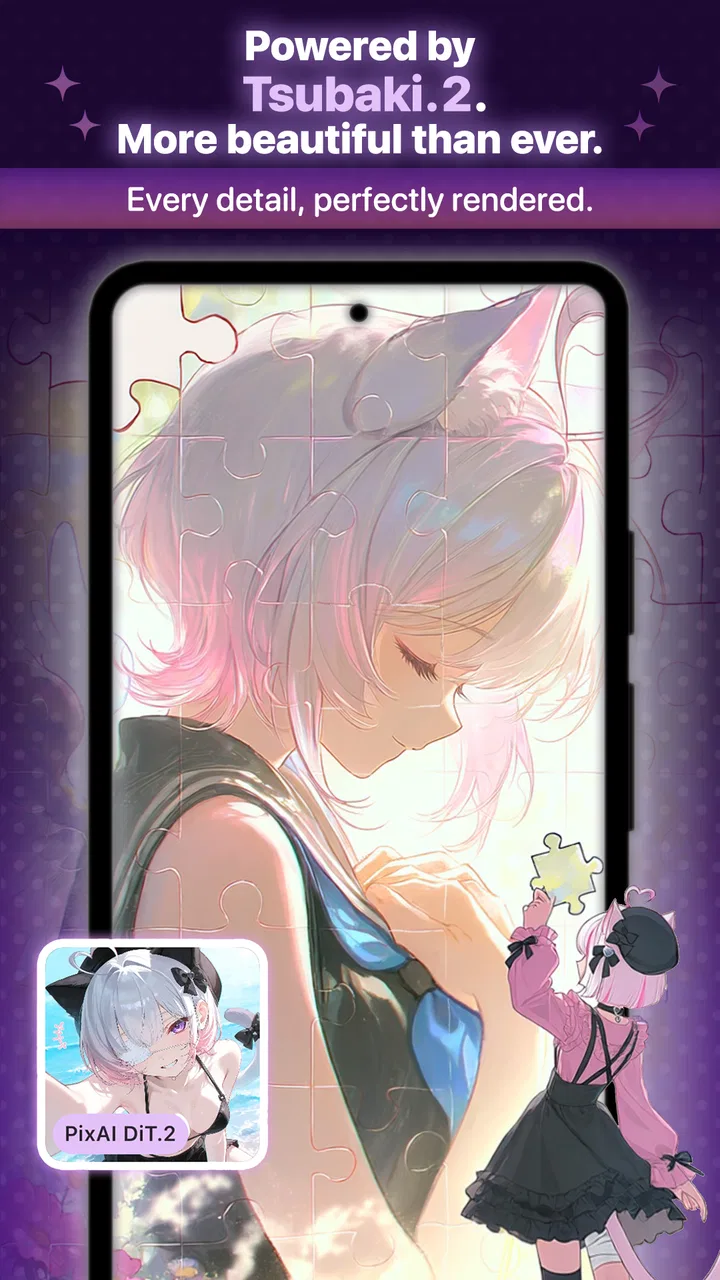
I approached PixAI: AI Anime Art Generator as an art and design app rather than as a replacement for a full drawing studio. My first impression was that it is aimed at people who want to turn an idea into anime-style artwork without beginning with a blank canvas and building every line manually. That makes it appealing for quick character concepts, mood boards, profile images, visual experiments, and moments when I have a clear idea but not the drawing skill or time to execute it.
The app is free to install, and Mewtant Inc. has positioned it for a broad audience interested in AI-assisted image creation. It carries a Teen content rating, so I would still treat the generated results as something to review carefully before sharing, especially if a younger user is involved. Its average score sits at 4.4 from around 47 thousand ratings, with more than a million installs, which suggests that it has found a substantial audience without making it a perfect fit for everyone.
Where the experience usually gets stuck
The most difficult part is rarely typing a first idea. The real challenge is learning how to describe the image in a way that gives the generator enough direction without turning the prompt into a confusing pile of keywords. I found that a short, structured description is easier to refine than one giant sentence containing character details, clothing, lighting, background, camera angle, mood, and artistic references all at once.
You May Also Like

 Pandora - Music & Podcasts
Pandora’s Music Is Easy to Start, but Harder to Recover
Pandora’s strength is its low-effort path from a seed to a station. Its weak spot is how much confidence it asks you to place in connection, setup, and quiet recovery.

 AccuWeather: Weather Radar
AccuWeather Review: A Quick, Clear Forecast for Everyday Decisions
For everyday plans, the best forecast is the one you can understand quickly. AccuWeather makes rain timing, radar, and local conditions easy to act on, with a few trade-offs.

 Hill Climb Racing
Why Hill Climb Racing Still Turns Crashes Into One More Run
A tiny car, a bumpy hill and one more upgrade: Hill Climb Racing keeps resurfacing because its simple chaos makes every near-miss feel personal.

 AliExpress - Shopping App
AliExpress Makes Global Shopping Feel Personal, but Shoppers Bear the Risk
AliExpress turns a global marketplace into a pocket-sized discovery engine. Its reach is useful, its shopping loop compelling, and its trade-offs easy to miss.

 Lords Mobile: Kingdom Wars
Lords Mobile Is a Kingdom-Building Routine, Not a Quick Match
A case-by-case verdict on the building, battles, device demands, and social commitments that make Lords Mobile rewarding for some players and exhausting for others.

 PDF Scanner app - TapScanner
TapScanner Makes Paperwork Easier to Capture, Check, and Share
TapScanner makes scanning with a phone feel less like a rescue operation and more like a dependable step in getting work done. Its capture tools are useful, though not flawless.
More From Our News Desk
View All News


For example, I would start with the subject and action, then add appearance, setting, and atmosphere. A prompt built around “a young mage reading beside a rainy window, dark blue cloak, warm candlelight, detailed anime illustration” gives a useful foundation. If the face, clothing, or background needs improvement, I can change one part at a time. That is much more productive than replacing the entire prompt after every disappointing result.
Users can also get stuck because an attractive image is not necessarily a controllable image. A generation may look polished while missing an important detail, such as the number of fingers, the position of an accessory, or the relationship between a character and the background. I recommend checking the hands, eyes, text, small objects, and repeated patterns before treating an image as finished. AI artwork can look convincing at a glance and still fall apart when viewed closely.
Another source of frustration is expecting the app to behave like a conventional drawing program. I would not open it expecting the same precise layer editing, brush control, vector handling, or frame-by-frame workflow found in dedicated art software. Its value is in exploring and developing visual ideas quickly. If I need exact line placement or a carefully controlled final illustration, I would use a traditional drawing app after using PixAI as a starting point, reference generator, or source of inspiration.
There is also a practical cost consideration. The app is free, but it includes in-app purchases ranging from $0.99 to $599.99 per item. That does not make the free experience unusable, but it does mean I would pay attention before confirming any optional purchase. I would begin with small experiments, learn what the free workflow offers, and decide whether the time saved is worth spending money for my particular use.
Why the first result may feel wrong
When a result misses the mark, I would not immediately assume the generator is broken. AI image tools interpret language differently from a human illustrator. Words can compete with one another, an unusual pose can be harder than a portrait, and a detailed scene can lose minor elements when too many priorities are introduced at once.
A useful recovery method is to simplify. I might remove the background, generate the character in a neutral pose, and then work toward the more ambitious scene. This separates a character-design problem from a composition problem. It also makes it easier to identify whether the issue comes from the description, the chosen style, or the complexity of the requested image.
I would also avoid changing several variables at the same time. If I alter the character, outfit, setting, lighting, and mood in one attempt, I cannot tell which change helped. Keeping a small note of prompts that produced promising results is surprisingly useful. Even a simple record of the character description and the successful visual traits can save time when I want to build a related image later.
Setup checks before judging the app
Before using it seriously, I would make sure the device meets the stated minimum of Android 8.0 or later. That is a basic check, but it matters because an older device may struggle with modern image workflows even when the app technically installs. I would also leave enough free storage for the app and saved artwork, keep the operating system reasonably current, and avoid testing it for the first time while relying on an unstable connection.
Connection quality is especially important for cloud-assisted creative tools. If a request appears to stall, I would first check whether other apps can load normally, switch between Wi-Fi and mobile data when practical, and retry only after confirming that the connection is stable. Repeatedly tapping a generation control during a slow response can make the situation more confusing, particularly if the first request eventually completes and several attempts appear together.
I would begin with a simple portrait rather than a complex group scene. This gives me a quick way to confirm that the installation, account access, generation process, and saving workflow are all functioning. Once that basic path works, I can test more demanding prompts. Starting small is not just convenient; it prevents me from blaming the app for a problem caused by an overly ambitious first request.
It is also worth checking the app version before troubleshooting further. The current version is 4.8.6, and keeping the installed release current can resolve ordinary compatibility problems. If the app was installed long ago, I would update it before clearing data, reinstalling, or changing device settings. Those more disruptive steps can remove local state or create extra work without addressing the original cause.
During setup, I would read each screen carefully instead of accepting every option automatically. The app is rated for Teen users, and generated images can vary according to the wording and subject matter. I would use age-appropriate prompts, review results before sharing them, and avoid treating the generator as a filter that will automatically make every idea suitable for every audience.
A calmer first-session workflow
My preferred first session would be deliberately modest. I would choose one character, one setting, and one visual mood. After the first result, I would identify a single improvement, such as a clearer hairstyle, a different outfit color, or a less crowded background. Then I would run another focused variation. This process teaches me how the app responds while producing useful artwork along the way.
I would save promising results as references rather than assuming the first good image is the final one. A useful image might provide the right costume, pose, color palette, or facial expression even if another attempt has a better background. Thinking in terms of components makes the process less disappointing. The app becomes a visual sketchbook for exploring possibilities, not a one-button replacement for artistic decisions.
For a social profile image, I would keep the subject large and the background simple because small details can disappear when the image is displayed at a reduced size. For a story concept, I would focus more on consistent character traits and repeat the same descriptive wording. For a poster-like composition, I would leave space where text could be added later in a separate design tool rather than expecting generated lettering to be perfectly reliable.
That last point is an important trade-off. AI image generation is good at suggesting an overall look, but text, logos, exact symbols, and precise graphic layouts are areas where I would want manual control. If the purpose is a polished announcement, book cover, thumbnail, or promotional graphic, I would generate the artwork in PixAI and finish the typography elsewhere. This two-step workflow is usually more dependable than asking one generation to solve both illustration and layout.
Recovering a workflow after a failed generation
When a generation does not appear, I would work through the problem in a fixed order. First, I would wait briefly and check whether the request has actually finished. Next, I would confirm the connection, close and reopen the app if the interface is unresponsive, and try a much simpler prompt. If the simple test works, the original request was probably too demanding or poorly structured rather than evidence that the whole app is unusable.
If the app closes unexpectedly, I would restart it and repeat the test without immediately recreating a long prompt. I would keep the first retry small so that I can distinguish an isolated crash from a broader issue. Updating the app and restarting the device are sensible general checks. I would be more cautious about clearing app data or reinstalling, since those actions can affect locally stored information and should be reserved for situations where ordinary recovery has failed.
A failed image can also be recovered creatively. If a full-body pose produces distorted hands, I might request a closer portrait or a less complicated stance. If a group scene merges characters, I might create the characters separately and use another editor to assemble the composition. If the background overwhelms the subject, I would simplify the setting before adjusting the character description. Each workaround reduces the number of difficult decisions the generator must solve in one pass.
One of the more useful habits is to preserve the wording that produced a good trait. If the face works but the clothing does not, I would keep the facial description and change only the outfit. If the costume is excellent but the mood is wrong, I would retain the costume language and alter the lighting or atmosphere. This kind of controlled iteration is more efficient than starting from zero and helps me understand which parts of the prompt are doing real work.
I would also avoid judging the app from one failed attempt. Variation is part of this kind of tool, and the most attractive result may not be the most faithful to the prompt. My standard is not whether every output is perfect. I ask whether the app helps me reach a useful visual direction faster than sketching from nothing. For concept exploration, that answer can be yes even when I still need manual cleanup.
When the app is not the cause
Some problems belong to the device or the surrounding workflow rather than the application itself. A nearly full phone can make saving and switching between apps inconvenient. Aggressive battery management can interrupt background activity. A weak network can make a request look frozen. An older device may also feel slow during image handling even though the app launches normally. Checking these conditions first prevents unnecessary reinstallations.
There is a similar distinction between a technical failure and an artistic mismatch. If the result is sharp but has the wrong pose, that is a prompt or generation issue. If the app cannot save or repeatedly stops responding, that is more likely a technical problem. Separating those cases helps me choose the right response: revise the description for the first, and check the device, connection, and app state for the second.
I would not choose this app as my main tool if I need strict ownership of every stroke, dependable typography, exact brand colors, or a repeatable production pipeline. A conventional drawing application is better for deliberate illustration, while a layout tool is better for text-heavy designs. Someone who dislikes AI-generated variation may also find the process tiring because the user must guide, inspect, and revise rather than simply execute a fixed plan.
On the other hand, I think it is a strong match for a beginner who wants visual results quickly, a writer building references for characters, a role-playing enthusiast designing original avatars, or an experienced artist looking for fast thumbnails. It can also help when I know the feeling I want but cannot yet visualize the composition. In that situation, several imperfect images can reveal a direction that would have taken much longer to discover alone.
An everyday example that makes sense
Imagine I am preparing a small online story project after work. I have a character in mind but only a rough description: a quiet traveler, a worn coat, a lantern, and a foggy harbor. Instead of spending the evening trying to draw the entire scene, I would use PixAI to explore the character’s silhouette, clothing, and atmosphere. I would keep the best reference, correct the details manually in another tool, and use the result to guide the final artwork.
If the harbor scene becomes muddy, I would separate the tasks. First I would generate the traveler against a simpler background. Then I would explore the harbor mood with fewer character details. This produces references that are easier to use than one overloaded image. The app saves time at the idea stage, while a separate editor remains responsible for the final presentation.
That example also shows why I would not measure success only by whether the generated image is publishable immediately. The practical benefit may be a better costume idea, a more convincing color scheme, or a pose I would not have considered. For me, those discoveries are often more valuable than a single flawless output.
My practical verdict after weighing the trade-offs
PixAI is a capable free entry point into AI anime art generation, especially for users who want to experiment without first learning advanced drawing techniques. I like its usefulness as a rapid idea machine: it can turn loose descriptions into visual references and help me move past the intimidating blank page. The strongest results come from patient prompting, small revisions, and a willingness to finish the work elsewhere when precision matters.
The friction is equally clear. I need to manage expectations around inconsistent details, complicated scenes, and generated text. I also need to remember that free access and optional purchases are different things, with individual in-app items reaching as high as $599.99. I would set a personal spending limit before exploring paid options and would never assume that a more expensive choice automatically solves an artistic problem.
The app is available free of charge, runs on Android 8.0 and newer, and is developed by Mewtant Inc. Its Teen rating makes sensible review and sharing habits important. With an average rating of 4.4 and roughly 47 thousand ratings, it has enough public use to make it worth considering, but those figures should not replace testing it against my own workflow.
My recommendation is straightforward: try it if you want anime-inspired concepts, character references, or quick visual experiments, and begin with simple prompts so you can learn how the process behaves. I would skip it as a primary tool if exact manual control, professional layout, or fully predictable results are non-negotiable. Used as a creative starting point rather than a complete art department, PixAI: AI Anime Art Generator can be genuinely useful, provided I stay involved in the decisions and treat every result as a draft worth inspecting.
FAQs for PixAI: AI Anime Art Generator
01What is PixAI: AI Anime Art Generator?
PixAI is an innovative application that allows users to generate anime-style artwork using artificial intelligence. By leveraging advanced machine learning algorithms, this app can transform simple sketches or photos into vibrant, detailed anime art. It's a fantastic tool for artists, anime enthusiasts, and anyone interested in exploring AI-generated art.
02How does PixAI work?
PixAI utilizes sophisticated AI algorithms to analyze and transform input images into anime art. Users can input a sketch or photo, and the app processes it to produce an anime-style illustration. The app offers various customization options, allowing users to adjust styles and fine-tune the output for a personalized touch.
03Is PixAI suitable for beginners?
Yes, PixAI is designed to be user-friendly, making it suitable for both beginners and experienced artists. The interface is intuitive, with clear instructions and easy-to-use tools. Beginners can quickly generate impressive anime art without prior experience, while more advanced users can explore its deeper customization features.
04Does PixAI require an internet connection?
PixAI requires an internet connection to access its AI processing capabilities. The heavy lifting of image transformation is done on remote servers, ensuring high-quality results. However, some basic features and offline previews may be available without an active connection, depending on the app’s updates.
05Are there in-app purchases or subscriptions in PixAI?
PixAI may offer in-app purchases or subscription models for additional features or enhanced capabilities. These might include premium art styles, higher resolution outputs, or special filters. It's advisable to check the app's store page for detailed information about pricing and available packages before downloading.
Pros
- Creates stunning anime-style art easily.
- User-friendly interface for beginners.
- Wide variety of customization options.
- High-quality output resolution.
- Regular updates with new features.
Cons
- Limited free features; premium needed.
- Occasional lag on older devices.
- Requires internet for full functionality.
- AI can produce inconsistent results.
- Some features are locked by region.

PixAI: AI Anime Art Generator
Gallery